
Seamless Shipping
Fast, reliable delivery with Real-time tracking and updates

Moorah Download provides different ways to access Moorah on Android, iOS, Windows and macOS. You can use the download links available through the official Moorah website or create a convenient website shortcut on your device by following the steps below.
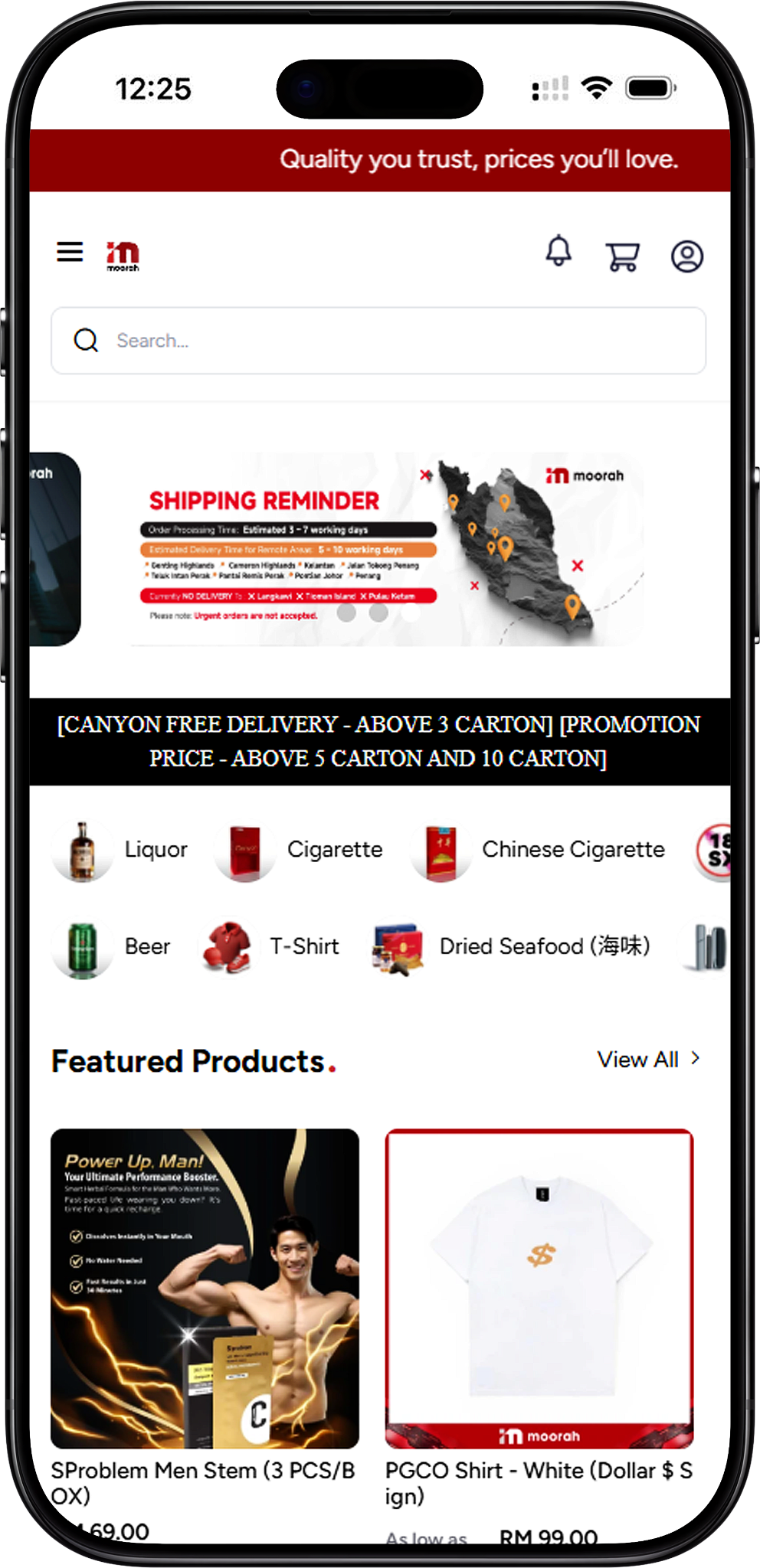
Android users can access the official Moorah download option through the website. The Moorah website footer provides a Google Play button for supported downloads.
Open the Moorah website on your Android device and scroll to the footer of the page.
Find the Google Play button in the website footer and select it to continue to the available Android download option.
Follow the instructions displayed after selecting Google Play to complete the download on your Android device.
If you prefer quick browser access without using the download option, you can add the Moorah website directly to your Android home screen.
Open Google Chrome on your Android phone or tablet and visit the Moorah website.
Tap the three-dot menu in the top-right corner of Chrome.
Choose “Add to Home screen” from the available menu options. Chrome may display “Install app” instead on some devices.
Enter “Moorah” or another preferred name for the website shortcut.
Confirm the action to place the Moorah shortcut on your Android home screen for easier future access.
iPhone and iPad users can access the Moorah download option through the App Store button displayed in the footer of the official Moorah website.
Open the Moorah website on your iPhone or iPad and scroll down to the website footer.
Tap the App Store button displayed in the footer to continue to the available iOS download option.
Follow the instructions displayed after selecting the App Store option to complete the download on your iPhone or iPad.
You can also add the Moorah website to the Home Screen of your iPhone or iPad through Safari.
Open Safari on your iPhone or iPad and visit the Moorah website.
Tap the Share button, represented by a square with an upward arrow.
Find and select “Add to Home Screen” from the Safari sharing options.
Set the shortcut name to “Moorah” or another name you prefer.
Tap “Add” to place the Moorah website icon on your iPhone or iPad Home Screen.
Moorah can also be accessed from desktop devices. Windows users can use the Google Play option shown on the Moorah website, while macOS users can use the App Store option. Website shortcuts are also available for convenient browser access.
Visit the Moorah website from your Windows computer and scroll to the footer.
Click the Google Play button displayed in the footer to access the available download option for Windows.
Continue with the instructions provided after selecting Google Play to complete the available installation process.
Visit the Moorah website from your Mac and navigate to the footer of the page.
Click the App Store button displayed in the footer to continue to the available macOS download option.
Follow the instructions provided after selecting the App Store option to complete the available installation process on your Mac.
If you prefer direct access through your browser, you can create a Moorah website shortcut on Android, iOS, Windows or macOS. This places a convenient icon on your device without requiring you to enter the website address each time.
Open the Moorah website in Chrome, Edge or Firefox. Drag the site icon from the address bar onto your desktop to create a shortcut that opens Moorah in your default browser.
Open Moorah in Chrome, open the browser menu and locate the option for creating a website shortcut. Name the shortcut “Moorah” and confirm to place it on your computer.
Open Moorah in Microsoft Edge, select the menu, navigate to the Apps options and choose the option to install the site as an app. You can then access it from supported Windows locations such as the Start menu.
Right-click your Windows desktop, select New and then Shortcut. Enter the Moorah website address, choose a name for the shortcut and select Finish.
Open Moorah in Safari and drag the website address or site icon from the address bar onto your desktop. macOS will create a web shortcut that you can use to reopen the site.
Open Moorah in Chrome and use the browser option for creating a website shortcut. Name it “Moorah” and confirm to create convenient desktop access.
If preferred, open the shortcut information on your Mac and customize its icon using an image of your choice.
Visit the official Moorah website and use the Google Play or App Store buttons available in the website footer according to your device.
The Moorah website provides a Google Play option for Android users. You can also add the Moorah website directly to your Android home screen through Chrome.
The Moorah website provides an App Store option for iOS users. Alternatively, iPhone and iPad users can add the website to their Home Screen through Safari.
Yes. Windows users can follow the available Google Play option provided by Moorah or create a desktop shortcut using a supported web browser.
Yes. Mac users can follow the App Store option displayed by Moorah or create a website shortcut through Safari or Chrome.
Not necessarily. Android users can follow the official Google Play option provided on the Moorah website or add the website to their home screen through Chrome.
The wording can vary depending on your Chrome version and device. If “Install app” appears, follow the option provided by Chrome or refresh the page and check the browser menu again.
Access the official Moorah download options for Android, iOS, Windows and macOS, or create a website shortcut for convenient access.
Fast, reliable delivery with Real-time tracking and updates

Earn bonuses for every friend you invite

Win Jackpot by purchasing products

Get assistance on 8AM - 8PM daily